Responsive Product Card UI using HTML & CSS
Learn how to build a stunning, modern eCommerce product card with hover animations and responsive design.
Welcome to this tutorial on Designing a Responsive Product Card. In the world of eCommerce, the product card is the most important element on your page. It needs to be beautiful, informative, and interactive to drive conversions.
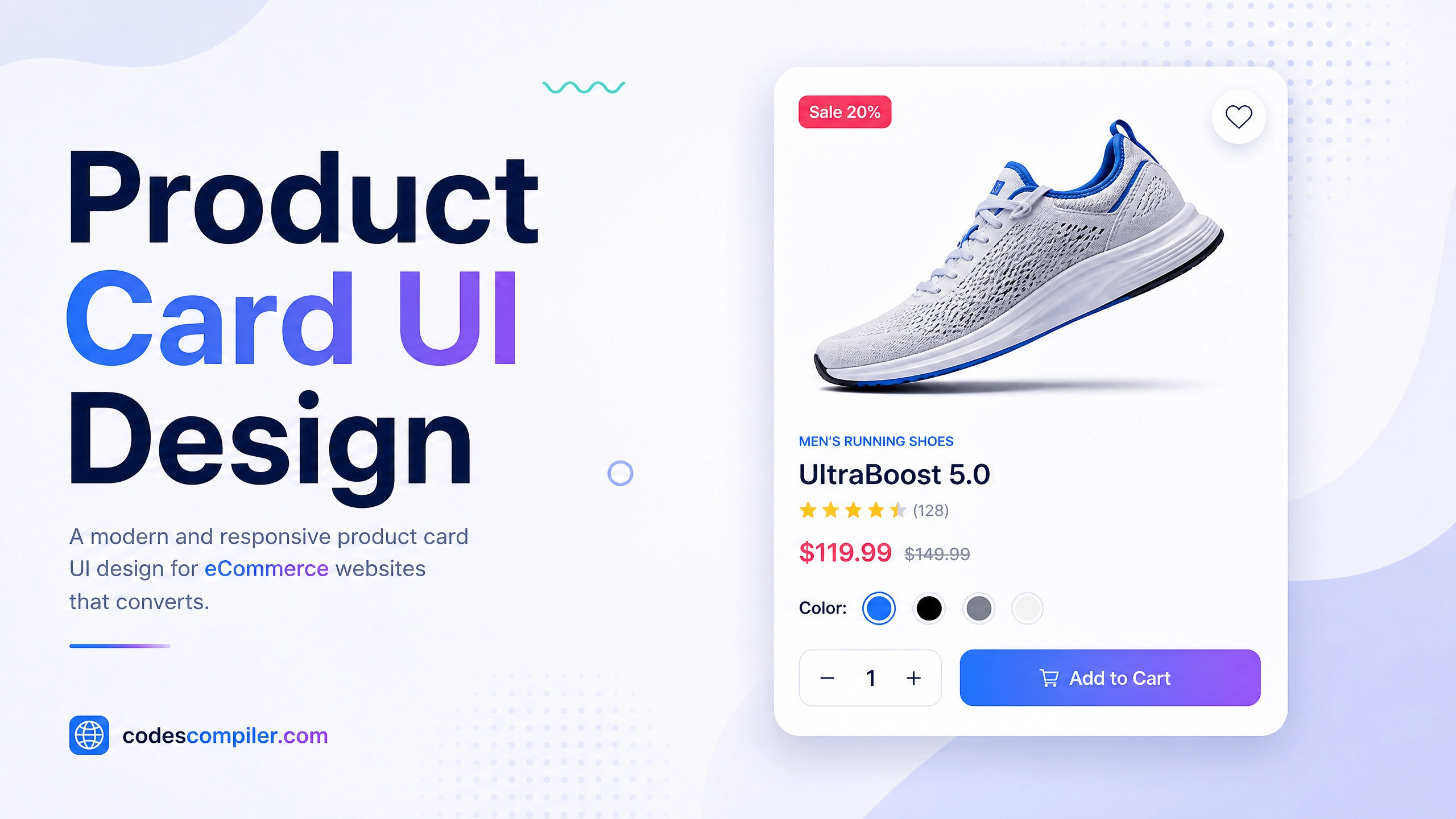
In this guide, we will build a premium product card featuring a “Sale” badge, price strike-throughs, color selection options, and a dynamic image hover effect.
1. The HTML Layout
We split our .card into two main sections: the .image-container (which holds the product photo and the badge) and the .content (which holds the text, options, and button).
<div class="card">
  <!-- Top: Image Section -->
  <div class="image-container">
    <div class="badge">Sale</div>
    <img src="sneaker.jpg" alt="Sneaker">
  </div>

  <!-- Bottom: Details Section -->
  <div class="content">
    <div class="brand">Nike</div>
    <h2 class="title">Air Max 270 React</h2>

    <div class="price-row">
      <span class="price">$129.99</span>
      <span class="old-price">$160.00</span>
    </div>

    <div class="options">
      <div class="options-title">Select Color:</div>
      <div class="colors">
        <div class="color-btn active" style="background: #ef4444;"></div>
        <div class="color-btn" style="background: #3b82f6;"></div>
      </div>
    </div>

    <button class="btn-cart">Add to Cart</button>
  </div>
</div>
2. Card and Image Styling
We use overflow: hidden on the card to ensure the sharp corners of the image container don’t stick out of the card’s border-radius.
To make the product “pop” off the screen, we apply a CSS drop-shadow to the image itself (not the container).
.card {
  background: white;
  border-radius: 20px;
  overflow: hidden;
  width: 100%;
  max-width: 380px;
  box-shadow: 0 10px 30px rgba(0,0,0,0.08);
  transition: transform 0.3s ease;
}

.image-container img {
  width: 80%;
  object-fit: contain;
  filter: drop-shadow(0 20px 20px rgba(0,0,0,0.15)); /* Adds shadow directly to the shoe shape */
  transition: transform 0.5s ease;
}
3. The Hover Animation
To make the card feel interactive, we add two animations when the user hovers over the card:
- The entire card floats upwards slightly.
- The product image scales up and tilts, making it feel dynamic.
/* Float the card up */
.card:hover {
  transform: translateY(-10px);
}

/* Zoom and rotate the image */
.card:hover .image-container img {
  transform: scale(1.1) rotate(-5deg);
}
4. Styling the Content
We use Flexbox to align the prices and the color selection buttons. The color buttons are styled using a neat trick: we give them a white border, and then an outer box-shadow to create a ring effect.
.price-row {
  display: flex;
  align-items: center;
  gap: 10px;
}

.old-price {
  color: #94a3b8;
  text-decoration: line-through; /* Strikethrough effect */
}

/* Color selection buttons */
.color-btn {
  width: 30px;
  height: 30px;
  border-radius: 50%;
  border: 3px solid white;
  box-shadow: 0 0 0 1px #cbd5e1; /* The outer ring */
  cursor: pointer;
}

.color-btn.active {
  box-shadow: 0 0 0 2px #0f172a; /* Darker, thicker ring for the active state */
}
Because we set max-width: 380px and width: 100%, this card is natively responsive and will perfectly shrink to fit mobile screens. Check out the Live Demo to see the hover effects in action!