Create a Premium Draggable Card Slider with HTML, CSS & JS
Build a responsive draggable card slider with HTML, CSS, and vanilla JavaScript. Learn the layout, pointer interactions, edge boundaries, customization, and accessibility.
Create a Premium Draggable Card Slider with HTML, CSS, and JavaScript
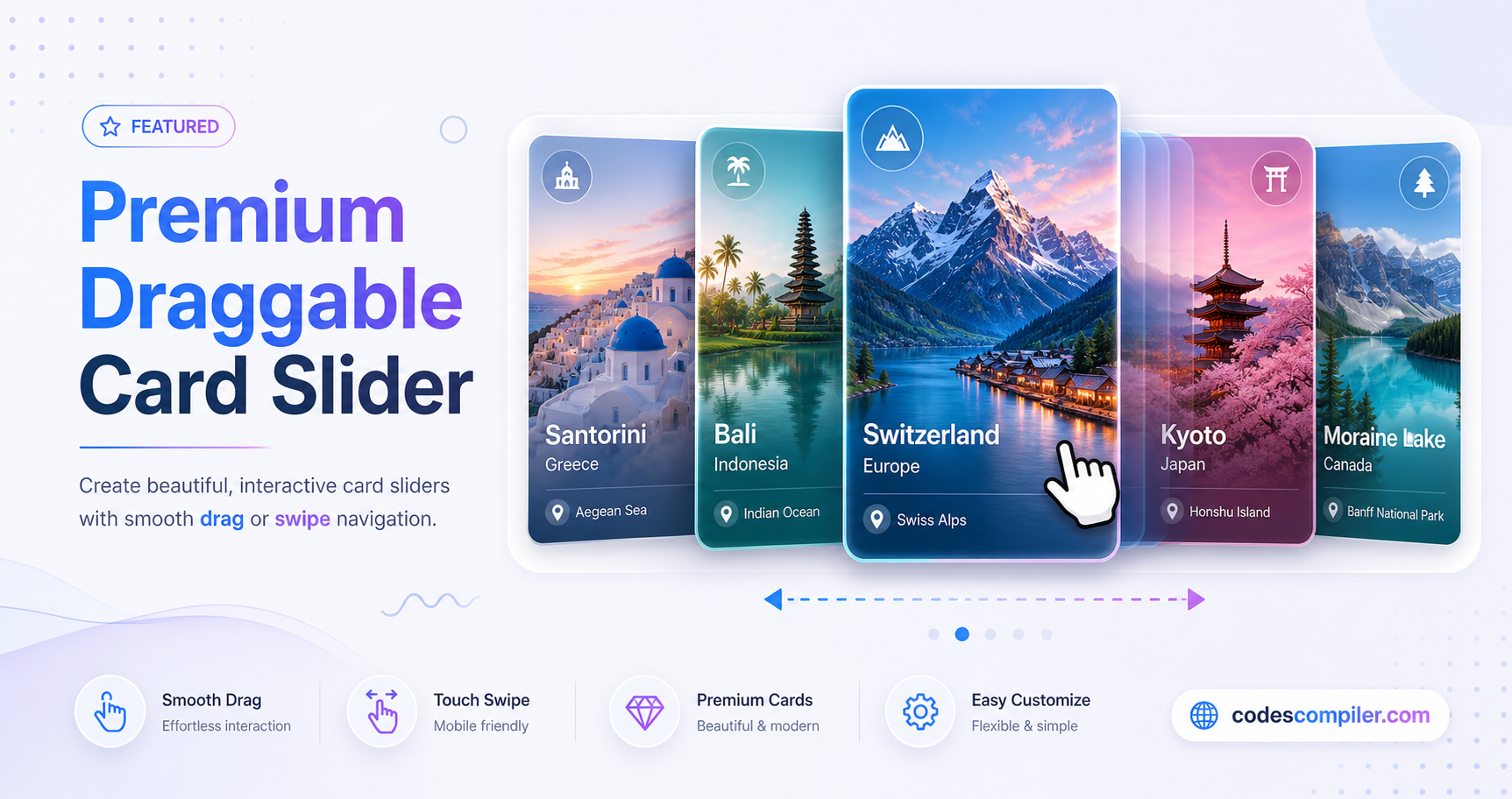
A draggable card slider is a horizontal row of cards that visitors can browse by dragging with a mouse or swiping on a touchscreen. It is useful for image galleries, featured articles, portfolios, product collections, and destination showcases.
In this tutorial, you will build a card slider using HTML for the content, CSS for the layout and visual design, and vanilla JavaScript for pointer-based dragging. The example includes five image cards, a dark theme, responsive sizing, and a small edge-resistance effect when a user drags past the beginning or end of the row.
The implementation below uses Pointer Events, which provide a common way to handle mouse, pen, and touch input. It does not use a third-party slider library.
What You Will Build
The finished component contains a heading, a short instruction, and a horizontally arranged set of destination cards. Each card includes an image, a title, a description, and a link.
The user can drag the cards horizontally on a desktop or swipe across them on a touch device. When the pointer is released, the track settles within its available range. This version uses direct dragging and boundary correction; it does not implement momentum-based inertial scrolling or autoplay.
Features
- Pointer dragging: Drag with a mouse, pen, or compatible touch input.
- Horizontal card layout: CSS Flexbox keeps cards in a single row.
- Responsive card sizing: Card dimensions adjust for smaller screens.
- Edge resistance: Dragging past either end is resisted, then corrected on release.
- Image overlays: A gradient helps keep card text legible over photographs.
- No slider dependency: The interaction is implemented with browser APIs and vanilla JavaScript.
Prerequisites
You need a text editor and a modern browser. Basic familiarity with HTML, CSS, and JavaScript will help you customize the example. No package installation or build step is required for this standalone version.
Project Setup
Create a folder named draggable-card-slider with these three files:
draggable-card-slider/
├── index.html
├── style.css
└── script.js
Put the HTML in index.html, the styles in style.css, and the interaction code in script.js. Keep all three files in the same folder, then open index.html in your browser.
1. HTML Structure
The HTML contains a wrapper, a heading, a clipped viewport, and a track that holds the cards. The viewport hides the portions of the track that are outside the visible area. The track itself is wider than the viewport when its cards do not all fit on screen.
Each card uses an image with meaningful alternative text, a heading, a short description, and a link. Replace the sample destination content and image URLs with content you have permission to use.
<!doctype html>
<html lang="en">
<head>
  <meta charset="utf-8">
  <meta name="viewport" content="width=device-width, initial-scale=1">
  <title>Draggable Card Slider</title>
  <link rel="stylesheet" href="style.css">
  <script src="script.js" defer></script>
</head>
<body>
  <main class="slider-wrapper">
    <header class="slider-header">
      <h1>Discover Destinations</h1>
      <p>Drag or swipe to explore these places.</p>
    </header>

    <div class="draggable-container" id="slider-viewport">
      <div class="draggable-track" id="track">
        <article class="card">
          <img
            src="https://images.unsplash.com/photo-1506744626753-143d3f0a1c6a?auto=format&fit=crop&w=900&q=80"
            alt="Mountain landscape beneath a bright sky"
            draggable="false">
          <div class="card-content">
            <h2>Majestic Peaks</h2>
            <p>Explore mountain trails and wide-open views.</p>
            <a class="card-btn" href="#mountains">Explore</a>
          </div>
        </article>

        <article class="card">
          <img
            src="https://images.unsplash.com/photo-1507525428034-b723cf961d3e?auto=format&fit=crop&w=900&q=80"
            alt="Blue ocean and sandy beach"
            draggable="false">
          <div class="card-content">
            <h2>Sunny Shores</h2>
            <p>Discover quiet beaches and coastal scenery.</p>
            <a class="card-btn" href="#beaches">Explore</a>
          </div>
        </article>

        <article class="card">
          <img
            src="https://images.unsplash.com/photo-1449844908441-8829872d2607?auto=format&fit=crop&w=900&q=80"
            alt="City buildings and streets"
            draggable="false">
          <div class="card-content">
            <h2>Neon City</h2>
            <p>Find new places in a lively urban setting.</p>
            <a class="card-btn" href="#cities">Explore</a>
          </div>
        </article>

        <article class="card">
          <img
            src="https://images.unsplash.com/photo-1476514525535-07fb3b4ae1f1?auto=format&fit=crop&w=900&q=80"
            alt="Green landscape beside a lake"
            draggable="false">
          <div class="card-content">
            <h2>Emerald Escape</h2>
            <p>Take a closer look at peaceful natural spaces.</p>
            <a class="card-btn" href="#nature">Explore</a>
          </div>
        </article>

        <article class="card">
          <img
            src="https://images.unsplash.com/photo-1480796927426-f609979314bd?auto=format&fit=crop&w=900&q=80"
            alt="Modern street scene in Japan"
            draggable="false">
          <div class="card-content">
            <h2>Tokyo Streets</h2>
            <p>Explore a blend of tradition and modern life.</p>
            <a class="card-btn" href="#tokyo">Explore</a>
          </div>
        </article>
      </div>
    </div>
  </main>
</body>
</html>
Understanding the HTML
.slider-wrapperkeeps the heading and slider together and limits the overall content width..draggable-containeris the visible viewport. Itsoverflow: hiddenproperty masks cards outside the viewport..draggable-trackis the moving row. JavaScript updates its horizontal transform.- Each
.cardgroups the image and its content so they can be styled as one unit. - The
draggable="false"attribute on the images helps prevent the browser’s native image-drag behavior from competing with the slider interaction. - The card links are real links; replace the example fragment destinations with relevant page URLs.
2. CSS Styling
The CSS creates the dark background, horizontal track, image cards, gradient overlays, and focus and hover states. The viewport uses touch-action: pan-y, allowing the browser to retain vertical page scrolling while the script handles horizontal pointer movement.
* {
  box-sizing: border-box;
}

body {
  margin: 0;
  min-height: 100vh;
  background: #0f172a;
  color: #fff;
  font-family: Inter, system-ui, -apple-system, BlinkMacSystemFont, "Segoe UI", sans-serif;
}

.slider-wrapper {
  width: min(100%, 1200px);
  margin: 0 auto;
  padding: 48px 24px;
}

.slider-header {
  margin-bottom: 28px;
  text-align: center;
}

.slider-header h1 {
  margin: 0 0 10px;
  font-size: clamp(1.8rem, 4vw, 2.6rem);
  line-height: 1.15;
  background: linear-gradient(135deg, #38bdf8, #a5b4fc);
  -webkit-background-clip: text;
  background-clip: text;
  color: transparent;
}

.slider-header p {
  margin: 0;
  color: #94a3b8;
  font-size: 1rem;
}

.draggable-container {
  width: 100%;
  overflow: hidden;
  padding: 18px 0 24px;
  cursor: grab;
  touch-action: pan-y;
}

.draggable-container.is-dragging {
  cursor: grabbing;
  user-select: none;
}

.draggable-track {
  display: flex;
  gap: 24px;
  width: max-content;
  transform: translateX(0);
  will-change: transform;
}

.card {
  position: relative;
  flex: 0 0 320px;
  height: 420px;
  overflow: hidden;
  border-radius: 20px;
  background: #1e293b;
  box-shadow: 0 15px 35px rgb(0 0 0 / 30%);
}

.card img {
  display: block;
  width: 100%;
  height: 100%;
  object-fit: cover;
  pointer-events: none;
}

.card-content {
  position: absolute;
  inset: auto 0 0;
  padding: 24px;
  background: linear-gradient(
    to top,
    rgb(15 23 42 / 96%) 0%,
    rgb(15 23 42 / 72%) 65%,
    transparent 100%
  );
}

.card-content h2 {
  margin: 0 0 8px;
  font-size: 1.4rem;
}

.card-content p {
  margin: 0 0 16px;
  color: #e2e8f0;
  font-size: 0.95rem;
  line-height: 1.5;
}

.card-btn {
  display: inline-block;
  padding: 10px 18px;
  border-radius: 999px;
  background: #38bdf8;
  color: #082f49;
  font-weight: 700;
  text-decoration: none;
  transition: background-color 160ms ease, transform 160ms ease;
}

.card-btn:hover {
  background: #7dd3fc;
  transform: translateY(-1px);
}

.card-btn:focus-visible {
  outline: 3px solid #fff;
  outline-offset: 3px;
}

@media (max-width: 600px) {
  .slider-wrapper {
    padding: 32px 16px;
  }

  .draggable-track {
    gap: 16px;
  }

  .card {
    flex-basis: min(78vw, 300px);
    height: 360px;
  }

  .card-content {
    padding: 20px;
  }
}

@media (prefers-reduced-motion: reduce) {
  .card-btn {
    transition: none;
  }
}
Understanding the CSS
Flexbox keeps the cards in one row. The track uses display: flex and a fixed gap between cards. Each card has flex: 0 0 ..., so it keeps its chosen width rather than shrinking to fit the viewport.
The viewport clips overflow. The track can extend beyond the visible container, while overflow: hidden ensures only the visible portion is shown.
The image fills the card. object-fit: cover fills the card area while preserving the image’s aspect ratio. Some edges may be cropped, depending on the image dimensions.
The gradient improves text legibility. A dark gradient behind the card content helps the white text remain readable over different photographs.
The mobile media query adjusts dimensions. On narrow screens, the cards become narrower and the spacing and padding are reduced. This lets part of the next card remain visible as a visual hint that more content is available.
3. JavaScript Drag Interaction
The JavaScript uses Pointer Events so mouse, pen, and touch input can share the same event handlers. It records the starting pointer position and the track’s current offset, calculates movement during dragging, and clamps the final position to the track’s available range.
document.addEventListener("DOMContentLoaded", () => {
  const viewport = document.getElementById("slider-viewport");
  const track = document.getElementById("track");

  if (!viewport || !track) return;

  let isDragging = false;
  let startX = 0;
  let startTranslate = 0;
  let currentTranslate = 0;
  let activePointerId = null;
  let dragStarted = false;

  const dragThreshold = 5;

  function getMinTranslate() {
    return Math.min(0, viewport.clientWidth - track.scrollWidth);
  }

  function clamp(value, min, max) {
    return Math.max(min, Math.min(max, value));
  }

  function setPosition(value) {
    currentTranslate = value;
    track.style.transform = `translateX(${currentTranslate}px)`;
  }

  function settlePosition() {
    setPosition(clamp(currentTranslate, getMinTranslate(), 0));
  }

  viewport.addEventListener("pointerdown", (event) => {
    if (event.pointerType === "mouse" && event.button !== 0) return;

    isDragging = true;
    dragStarted = false;
    activePointerId = event.pointerId;
    startX = event.clientX;
    startTranslate = currentTranslate;

    track.style.transition = "none";
    viewport.classList.add("is-dragging");
    viewport.setPointerCapture(event.pointerId);
  });

  viewport.addEventListener("pointermove", (event) => {
    if (!isDragging || event.pointerId !== activePointerId) return;

    const deltaX = event.clientX - startX;

    if (Math.abs(deltaX) > dragThreshold) {
      dragStarted = true;
    }

    if (!dragStarted) return;

    const proposed = startTranslate + deltaX;
    const min = getMinTranslate();

    // Apply a restrained rubber-band effect beyond the track edges.
    if (proposed > 0) {
      setPosition(proposed * 0.2);
    } else if (proposed < min) {
      setPosition(min + (proposed - min) * 0.2);
    } else {
      setPosition(proposed);
    }
  });

  function endDrag(event) {
    if (!isDragging || event.pointerId !== activePointerId) return;

    isDragging = false;
    activePointerId = null;
    viewport.classList.remove("is-dragging");

    track.style.transition = "transform 350ms cubic-bezier(0.2, 0.8, 0.2, 1)";
    settlePosition();
  }

  viewport.addEventListener("pointerup", endDrag);
  viewport.addEventListener("pointercancel", endDrag);
  viewport.addEventListener("lostpointercapture", (event) => {
    if (isDragging && event.pointerId === activePointerId) {
      isDragging = false;
      activePointerId = null;
      viewport.classList.remove("is-dragging");
      track.style.transition = "transform 350ms cubic-bezier(0.2, 0.8, 0.2, 1)";
      settlePosition();
    }
  });

  window.addEventListener("resize", () => {
    if (!isDragging) {
      track.style.transition = "none";
      settlePosition();
    }
  });
});
How the JavaScript Works
1. Select the viewport and track
The script finds the visible slider viewport and the inner track using their IDs. It exits early if either element is missing, avoiding errors if the script is reused on a page without the slider.
2. Record the starting position
When a user presses or touches the viewport, pointerdown records the pointer’s horizontal coordinate and the track’s current translation. The track’s transition is temporarily removed so it can follow the pointer directly.
3. Calculate movement
During pointermove, the script subtracts the starting coordinate from the current coordinate. That difference is added to the starting translation to calculate the track’s proposed new position.
A small movement threshold helps avoid treating an ordinary click as a drag. The example uses a five-pixel threshold; adjust it if your interface needs a different feel.
4. Apply edge resistance
The track should not move beyond its first or last card. The script calculates the minimum allowed translation from the viewport width and track width. If the user pulls beyond an edge, only a fraction of the excess movement is applied, creating a restrained rubber-band effect.
5. Settle after release
When the pointer is released or canceled, the script clamps the translation to the valid range and restores a short transition. This returns the track to its boundary if the user dragged beyond the available content.
6. Recalculate on resize
The visible width can change when a user resizes the browser or rotates a device. The resize handler recalculates the permitted range and corrects the track position when the slider is not actively being dragged.
4. How to Customize the Slider
Change the card width and height
Edit the .card rule in style.css. For example, to make the cards wider and taller, change flex-basis and height:
.card {
  flex: 0 0 360px;
  height: 460px;
}
On small screens, the media query can override the desktop width. Keep the mobile width comfortable for the available viewport.
Change the space between cards
The gap property on .draggable-track controls the distance between cards:
.draggable-track {
  gap: 18px;
}
Replace the card content
For each card, replace the image URL, alternative text, heading, description, and link destination. Use images you own or have permission to use, and write alt text that conveys the meaningful visual information.
Change the theme
You can modify the background, gradient, text, and button colors in the CSS. Check text contrast after changing the palette, especially when the text is displayed over photographs.
Add more cards
Copy an existing <article class="card">...</article> element inside .draggable-track. The track will expand to accommodate additional cards, and the script will calculate the scrollable range from the updated dimensions.
5. Responsive Behavior and Mobile Notes
The card width changes at the 600-pixel breakpoint, but the slider remains a horizontal row at all sizes. The touch-action: pan-y declaration lets the browser handle vertical panning while the JavaScript responds to pointer movement for the horizontal slider.
Test the component on an actual phone or tablet before using it in production. Touch handling can feel different across devices, and a slider should not make normal page scrolling difficult. Also test the card links on a touchscreen and make sure the interaction does not accidentally turn taps into drags.
6. Accessibility and Usability
Dragging should not be the only way to access the cards. The example keeps card links in the document so they can be reached using the keyboard, but a production carousel may also need explicit previous and next buttons, depending on the surrounding interface and the number of cards.
Keep focus indicators visible, use meaningful image alternative text, and ensure the text remains readable against the card images. Avoid relying exclusively on hover to reveal important controls, because touchscreens do not have a persistent hover state.
If you add automatic movement or more elaborate animation later, consider respecting the user’s reduced-motion preference and provide a way to pause or stop motion.
7. Common Problems and Solutions
The track does not move
Check that the id values in the HTML match the IDs used in JavaScript: slider-viewport and track. Confirm that script.js is loaded and inspect the browser console for errors.
The last card cannot be reached
The minimum translation is calculated using the viewport’s clientWidth and the track’s scrollWidth. If you change the layout or add borders and padding, check the actual rendered dimensions in the browser’s developer tools.
The slider moves, but vertical page scrolling feels awkward
Keep touch-action: pan-y on the viewport and test the gesture on a real touchscreen. Avoid applying touch-action: none to the entire page, because that can prevent normal scrolling.
The card link does not open the expected page
The example uses fragment links such as #mountains as placeholders. Replace them with real destination URLs or matching IDs that exist on your page.
Images do not appear
Check that the image URL is valid, that the browser can access it, and that the image provider permits the way you are using it. For a production site, consider serving optimized images from a source you control.
The text or button is hard to read
Adjust the overlay gradient and text colors. Make sure links have a visible focus style and remain discoverable on devices without hover.
8. Frequently Asked Questions
Can I build a draggable card slider without a library?
Yes. This example uses HTML, CSS, and vanilla JavaScript with Pointer Events. A library may still be useful for more complex requirements such as looping, pagination, autoplay, or advanced accessibility behavior.
Does the slider support touchscreens?
The example uses Pointer Events to handle pointer input, including touch on modern browsers. Test on the target devices and browsers to confirm that dragging and vertical page scrolling work as intended.
Does this example include momentum scrolling?
No. It follows the pointer while dragging and uses a short settling transition when released. Momentum scrolling would require tracking movement velocity and animating the track after pointer release.
How do I change the number of cards?
Add or remove card elements inside the track. The layout and movement range are based on the rendered track dimensions, so the slider can accommodate a different number of cards without hard-coded card counts.
Can I use this component for product cards?
Yes. Replace the destination content with product information and link each card to the appropriate product page. For a shopping interface, make sure prices and product details are current and that the links and any purchase controls are accessible.
Why use Pointer Events instead of separate mouse and touch handlers?
Pointer Events provide a unified event model for mouse, pen, and touch input. This reduces duplicated event-handling code and allows pointer capture so the slider can continue tracking the active pointer when it moves outside the viewport.
Conclusion
You have built a horizontal draggable card slider using HTML, CSS, and vanilla JavaScript. The HTML defines the cards, CSS creates the layout and visual treatment, and Pointer Events let users drag the track with a mouse, pen, or touch input.
You can adapt the same structure for galleries, portfolios, featured articles, or product collections. Before publishing a customized version, test its behavior at different viewport sizes and check that links, keyboard focus, and touch scrolling remain usable.