Build a Transparent Navigation Bar on Scroll
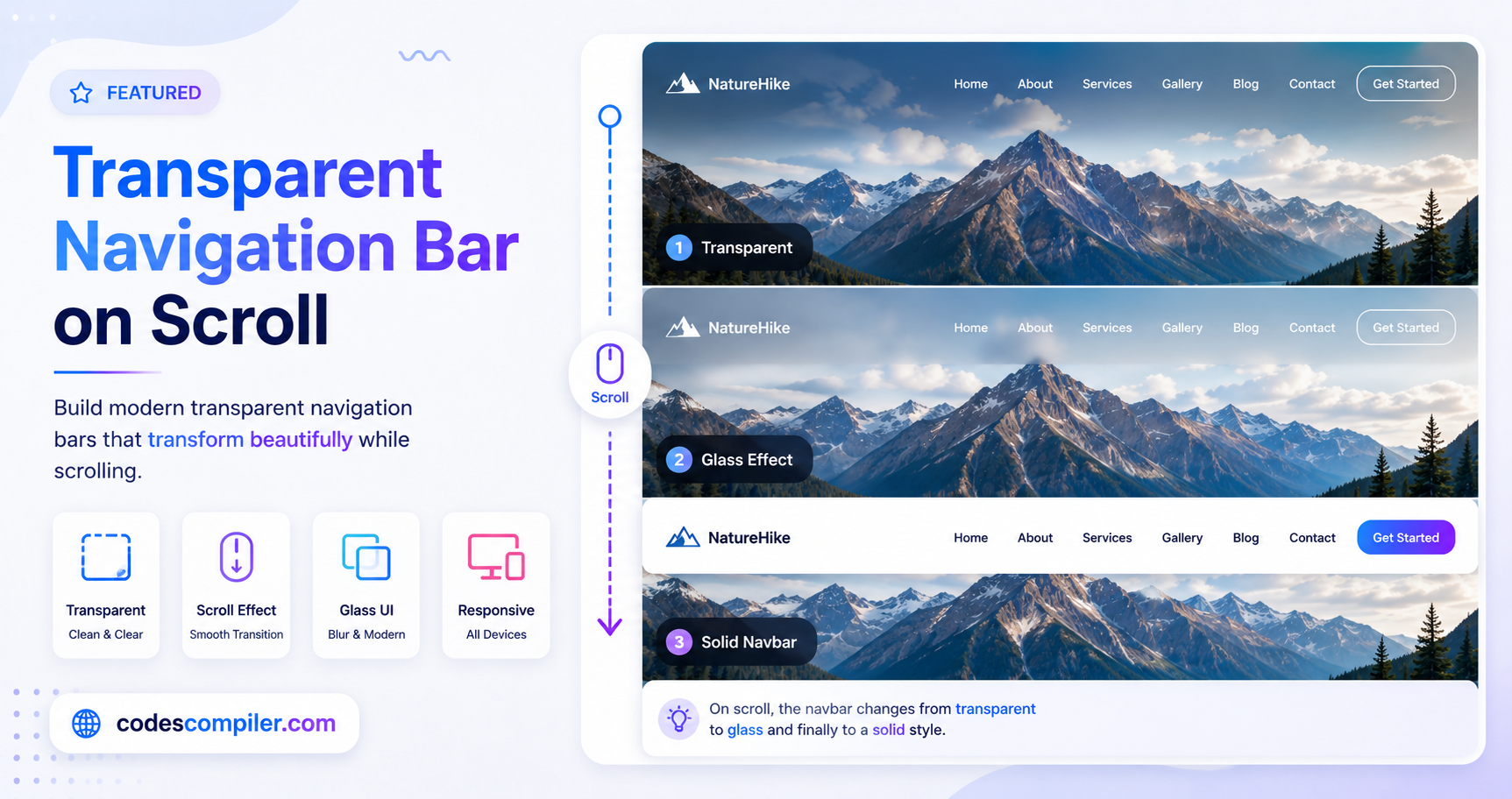
Learn how to build a modern transparent navigation bar that smoothly transitions to a solid background when the user scrolls down the page.
Welcome to this tutorial on Building a Transparent Navigation Bar on Scroll.
A very common pattern in modern web design is placing a full-screen image (a “Hero” section) at the top of a webpage. To make the image look as immersive as possible, the navigation bar is set to transparent. However, when the user scrolls down into the white text area, that transparent navbar (and its white text) would become invisible!
To solve this, we use a tiny bit of JavaScript to detect the scroll position and apply a solid background to the navbar once the user scrolls down.
1. The HTML Structure
We have a <nav> element and a <section> for our hero image. Note that we give the nav an id="navbar" so we can easily grab it with JavaScript.
<nav class="navbar" id="navbar">
  <a href="#" class="logo">Brand</a>
  <ul class="nav-links">
    <li><a href="#">Home</a></li>
    <li><a href="#">About</a></li>
  </ul>
</nav>

<section class="hero">
  <!-- Full screen background image goes here -->
  <h1>Welcome to our site</h1>
</section>

<section class="content">
  <!-- Lots of text goes here to allow scrolling -->
</section>
2. The CSS Styling
First, we fix the navbar to the top of the screen (position: fixed) and make its background transparent. We also add a transition: all 0.4s ease so that any changes to its styling are animated smoothly.
/* The Default Transparent State */
.navbar {
  position: fixed;
  top: 0;
  left: 0;
  width: 100%;
  padding: 25px 50px;
  background: transparent;
  transition: all 0.4s ease; /* Smooth animation */
  z-index: 1000;
}

.navbar .logo,
.navbar .nav-links a {
  color: white; /* White text for the dark image */
}
Next, we define a .scrolled class. We won’t put this class in the HTML directly. Instead, JavaScript will add it later. When this class is present, the background turns solid white, the padding shrinks slightly (a nice visual effect), and the text turns dark gray.
/* The Scrolled State (Added via JS) */
.navbar.scrolled {
  background: rgba(255, 255, 255, 0.95);
  padding: 15px 50px; /* Shrinks the navbar slightly */
  box-shadow: 0 4px 20px rgba(0,0,0,0.05);
}

.navbar.scrolled .logo,
.navbar.scrolled .nav-links a {
  color: #333; /* Dark text for the white background */
}
3. The JavaScript Logic
Finally, we need to listen for the scroll event on the window. Whenever the user scrolls, we check the window.scrollY property, which tells us how many pixels the page has been scrolled vertically.
If the user scrolls down more than 50 pixels, we add the .scrolled class to the navbar. If they scroll back up to the very top, we remove it.
// Grab the navbar element
const navbar = document.getElementById('navbar');

// Listen for scroll events on the entire window
window.addEventListener('scroll', () => {

  // If scrolled down more than 50px...
  if (window.scrollY > 50) {
    navbar.classList.add('scrolled'); // Apply solid background
  } else {
    navbar.classList.remove('scrolled'); // Revert to transparent
  }

});
Because we added transition: all 0.4s ease in our CSS, the browser will automatically animate the transition between the transparent state and the solid state. Check out the Live Demo to see the final result in action!