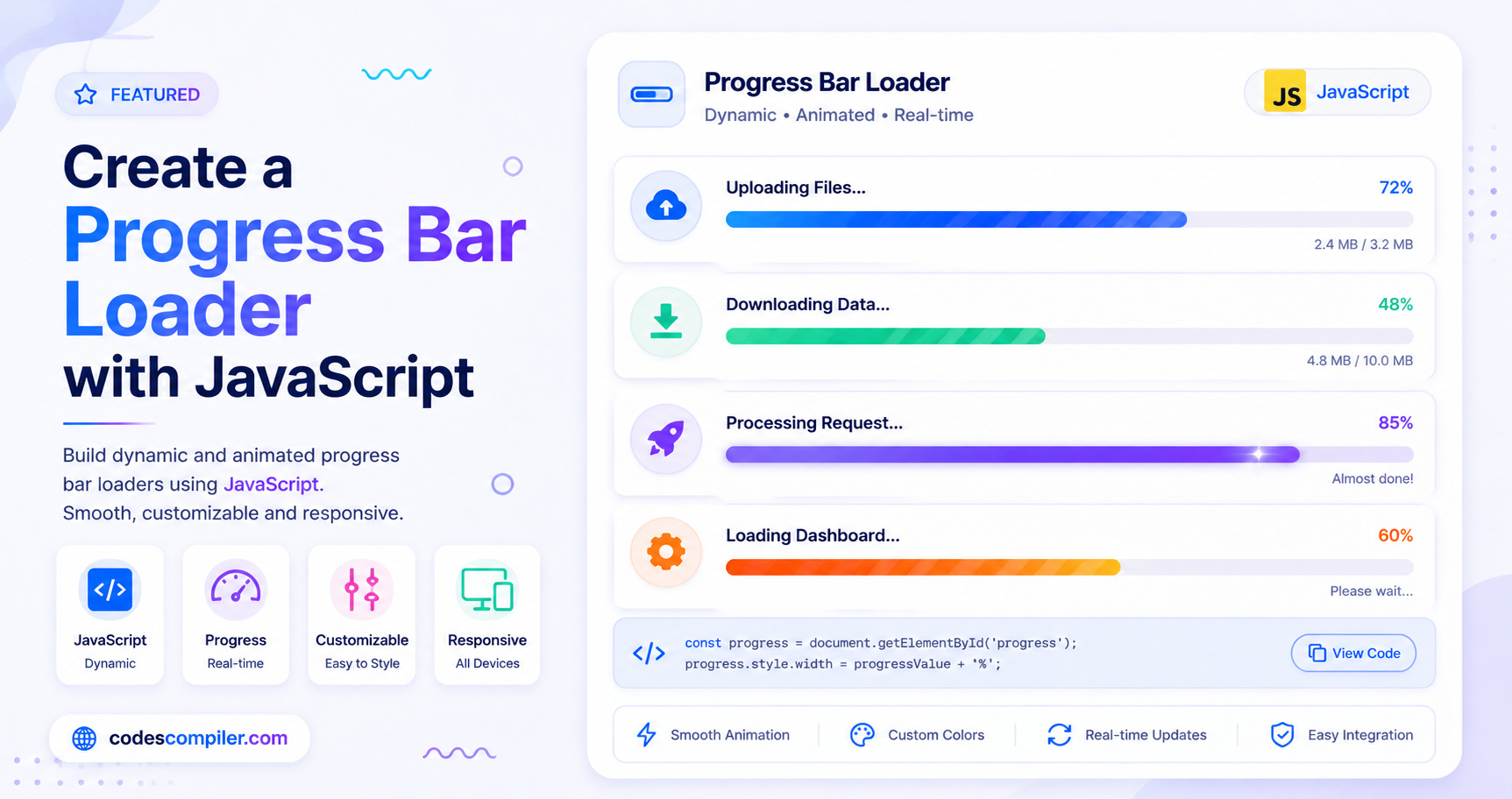
Create a Progress Bar Loader with JavaScript
Learn how to build a dynamic, animated progress bar using HTML, CSS, and Vanilla JavaScript to simulate data loading.
Welcome to this tutorial on Creating a Progress Bar Loader with JavaScript. When your web application is loading large files or fetching data, providing visual feedback to the user is essential. A progress bar tells the user exactly what is happening and how long they have to wait.
In this guide, we will build an animated gradient progress bar whose width is controlled dynamically using Vanilla JavaScript.
1. The HTML Structure
The structure of a progress bar requires two elements: an outer “wrapper” or “track” (which acts as the background), and an inner “fill” (the actual colored bar).
<div class="loader-container">
  <h2>Downloading Assets</h2>

  <!-- Outer Track -->
  <div class="progress-wrapper">
    <!-- Inner Fill -->
    <div class="progress-bar" id="progressBar"></div>
  </div>

  <div class="status-text" id="statusText">0% Complete</div>
  <button id="startBtn">Start Download</button>
</div>
2. The CSS Styling
The inner .progress-bar starts with a width of 0%. We also give it an animated gradient background to make it look active even when it’s temporarily stalled.
.progress-wrapper {
  background: #334155;
  border-radius: 30px;
  height: 20px;
  width: 100%;
  overflow: hidden;
}

.progress-bar {
  height: 100%;
  width: 0%; /* Initial state */
  background: linear-gradient(90deg, #3b82f6, #8b5cf6, #ec4899);
  background-size: 200% 100%;
  border-radius: 30px;
  transition: width 0.1s linear; /* Smoothly animates width changes */
  animation: gradientMove 2s infinite linear;
}

/* Animates the gradient colors to make it look "flowing" */
@keyframes gradientMove {
  0% { background-position: 100% 0; }
  100% { background-position: -100% 0; }
}
3. The JavaScript Logic
To simulate a download, we will use setInterval to randomly increase the width of the .progress-bar over time.
In a real-world scenario (like an XMLHttpRequest upload), you would update the width based on the actual bytes transferred. Here, we update it programmatically to mimic real network behavior.
const progressBar = document.getElementById('progressBar');
const statusText = document.getElementById('statusText');
const startBtn = document.getElementById('startBtn');

let progress = 0;
let intervalId = null;

function simulateDownload() {
  // Reset everything
  startBtn.disabled = true;
  progress = 0;
  progressBar.style.width = '0%';
  statusText.textContent = '0% Complete';

  // Create an interval that fires every 150 milliseconds
  intervalId = setInterval(() => {

    // Increment the progress by a random amount (between 1 and 8)
    const increment = Math.floor(Math.random() * 8) + 1;
    progress += increment;

    // Check if we hit 100%
    if (progress >= 100) {
      progress = 100;
      clearInterval(intervalId); // Stop the interval
      startBtn.disabled = false;
      statusText.textContent = 'Download Complete! 🎉';
    }

    // Update the DOM!
    progressBar.style.width = progress + '%';

    if (progress < 100) {
      statusText.textContent = progress + '% Complete';
    }

  }, 150);
}

// Attach the function to our button
startBtn.addEventListener('click', simulateDownload);
By manipulating the element.style.width property via JavaScript, you can tie your UI directly to any asynchronous backend process. Check out the Live Demo to see the progress bar in action!