Create a To-Do List Application using Vanilla JS
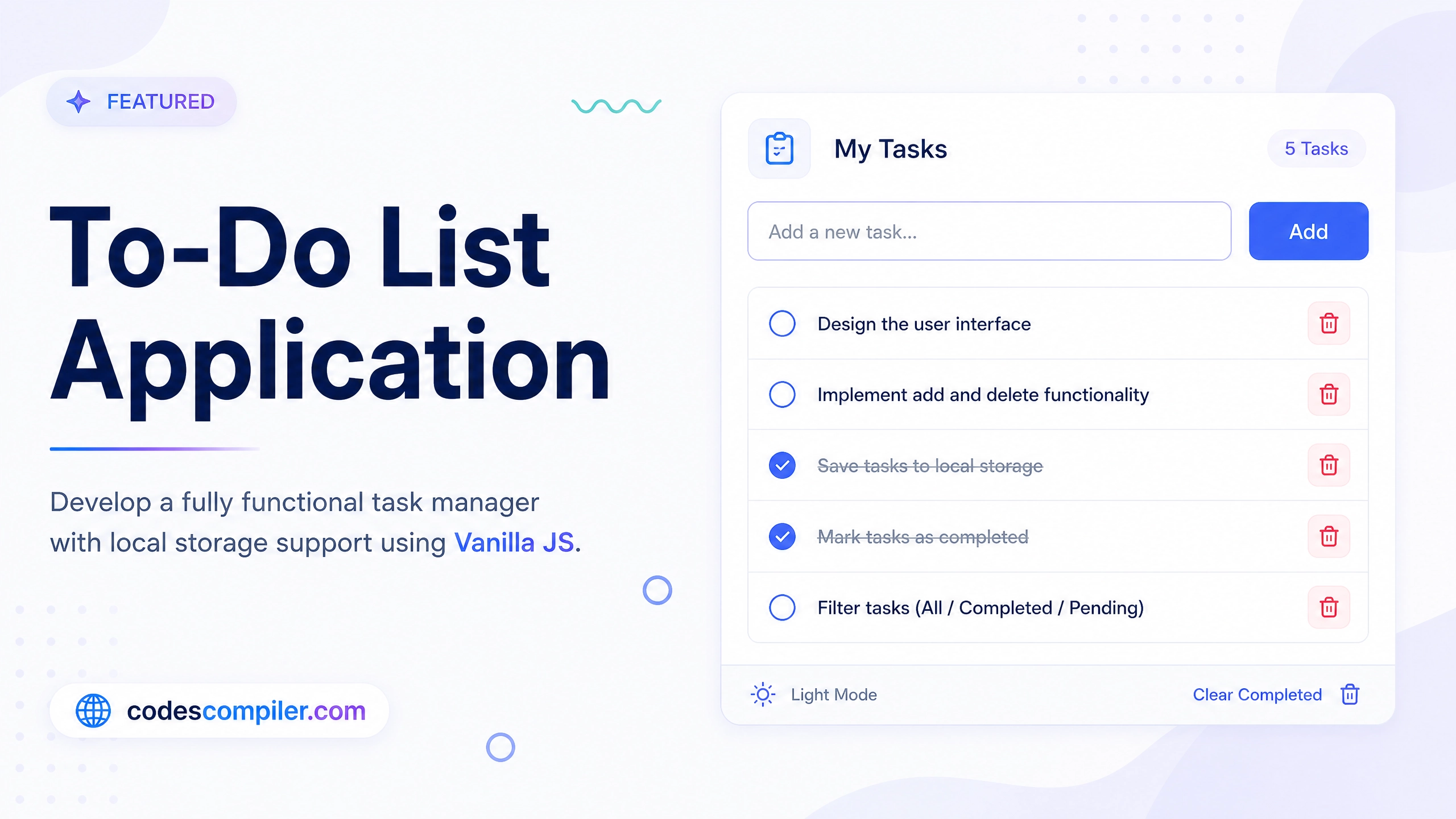
Learn how to build a fully functional To-Do List application with LocalStorage support using only Vanilla JavaScript.
Welcome to this tutorial on Creating a To-Do List Application in Vanilla JS. Building a To-Do list is the classic “Hello World” of interactive web applications. It teaches you how to handle arrays, manipulate the DOM, and persist data across page reloads.
In this guide, we will build a sleek To-Do app that lets users add, complete, and delete tasks, while saving everything to the browser’s localStorage.
1. The HTML Layout
We need an input field to type the task, a button to add it, and a <ul> list where the tasks will be dynamically injected.
<div class="todo-app">
  <h1>📝 To-Do List</h1>

  <div class="input-section">
    <input type="text" id="taskInput" placeholder="Add a new task...">
    <button id="addBtn">Add</button>
  </div>

  <ul id="taskList">
    <!-- JS will inject <li> items here -->
  </ul>
</div>
2. Managing Data with LocalStorage
We want our tasks to survive even if the user closes the tab. We do this by storing our tasks array as a JSON string in localStorage.
// Load tasks from LocalStorage, or start with an empty array
let tasks = JSON.parse(localStorage.getItem('tasks')) || [];

function saveTasks() {
  localStorage.setItem('tasks', JSON.stringify(tasks));
}
3. Rendering Tasks to the DOM
The renderTasks function clears the <ul> and loops through our tasks array, creating a new <li> element for every item.
const taskList = document.getElementById('taskList');
function renderTasks() {
taskList.innerHTML = ''; // Clear current list
if (tasks.length === 0) {
taskList.innerHTML = '<div class="empty-state">No tasks yet.</div>';
return;
}
tasks.forEach((task, index) => {
const li = document.createElement('li');
// Add completed styling if necessary
if (task.completed) {
li.classList.add('completed');
}
// Notice we pass the 'index' to our toggle and delete functions!
li.innerHTML = `
<div class="checkbox" onclick="toggleTask(${index})"></div>
${task.text}
<button class="delete-btn" onclick="deleteTask(${index})">×</button>
`;
taskList.appendChild(li);
});
}4. Adding, Toggling, and Deleting
Now we implement the functions that modify our tasks array. After any modification, we must call saveTasks() and renderTasks().
Adding a Task
function addTask() {
  const input = document.getElementById('taskInput');
  const text = input.value.trim();

  if (text === '') return; // Don't add empty tasks

  // Push new object to array
  tasks.push({ text: text, completed: false });
  input.value = ''; // Clear input field

  saveTasks();
  renderTasks();
}

document.getElementById('addBtn').addEventListener('click', addTask);
Toggling and Deleting
Because we passed the array index directly into the HTML onclick handlers, these functions are incredibly simple:
function toggleTask(index) {
  // Flip the boolean value
  tasks[index].completed = !tasks[index].completed;
  saveTasks();
  renderTasks();
}

function deleteTask(index) {
  // Remove 1 item at the specified index
  tasks.splice(index, 1);
  saveTasks();
  renderTasks();
}
Finally, call renderTasks() once at the very bottom of your script to load the tasks when the page first opens.
And you’re done! You now have a persistent, interactive To-Do application. Check out the Live Demo to interact with the final styled version!