CSS Grid vs Flexbox: Structural Differences & Use Cases
Confused between CSS Grid and Flexbox? Learn the key differences, when to use one over the other, and see side-by-side examples.
When building layouts in CSS, you have two primary layout systems: CSS Grid and Flexbox.
While both layout tools can achieve similar designs, they are architecturally different and designed for different use cases. Choosing the right tool will make your CSS cleaner, more maintainable, and easier to scale.
Let’s explore the core differences and clear rules of thumb on when to use each.
The Core Difference: 1D vs 2D Layouts
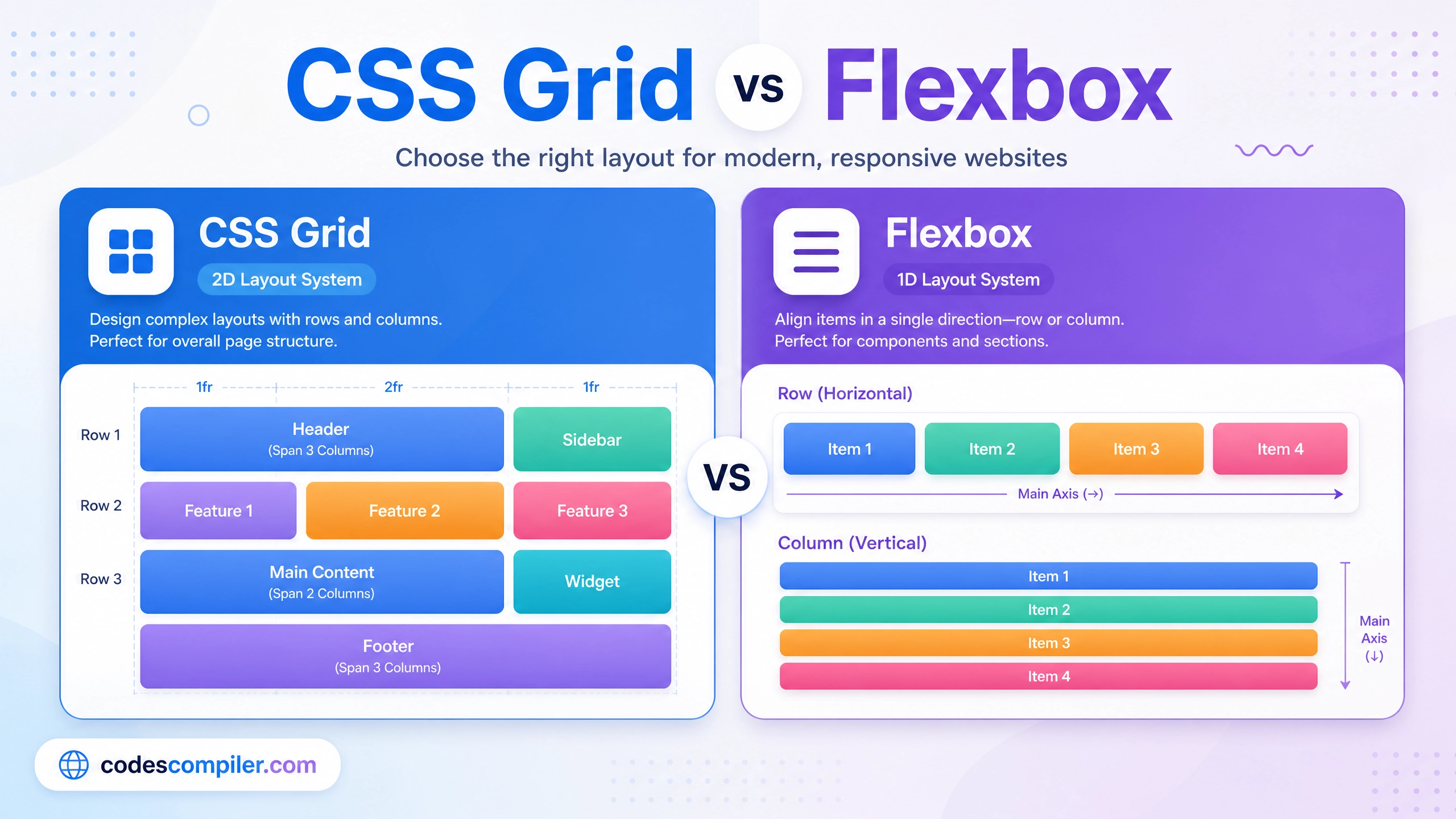
The simplest way to differentiate CSS Grid and Flexbox is by their layout dimensions:
-
Flexbox is One-Dimensional (1D): Flexbox lays out items along a single axis at a time — either horizontally (as a row) or vertically (as a column). It is content-driven, meaning elements size themselves based on their contents and the space available on that axis.
-
CSS Grid is Two-Dimensional (2D): CSS Grid aligns items along both axes simultaneously — rows and columns. It is layout-driven, meaning you define the grid columns and rows first, and then place content into the predefined grid cells.
When to Use Flexbox
Flexbox is best for aligning components and smaller web elements. Use Flexbox if:
- You need alignment along a single axis: For example, a horizontal navigation bar with links, or a vertical sidebar menu.
- You want element sizes to be content-driven: If elements should dynamically adjust their widths based on their internal text length, Flexbox is ideal.
- You are building small UI components: Modals, media objects, button groupings, form lines, and cards.
Flexbox Example: Simple Navigation Bar
.navbar {
  display: flex;
  justify-content: space-between;
  align-items: center;
}
When to Use CSS Grid
CSS Grid is best for complete page layouts and complex grids. Use Grid if:
- You need alignment along two axes: If you want elements aligned perfectly in columns and rows (like a calendar, dashboard panel layout, or magazine layout).
- You need to overlap elements: Grid allows you to overlap grid items on top of each other using grid areas or coordinates.
- You are building the layout first: If you have a specific visual wireframe of rows and columns and want to place items into it regardless of content size.
CSS Grid Example: Main Page Layout
.page-layout {
  display: grid;
  grid-template-columns: 250px 1fr;
  grid-template-rows: 80px 1fr 100px;
  grid-template-areas:
    "header header"
    "sidebar main"
    "footer footer";
}
Comparison Cheat Sheet
| Feature | CSS Flexbox | CSS Grid |
|---|---|---|
| Dimension | One-Dimensional (Row OR Column) | Two-Dimensional (Row AND Column) |
| Primary Use | Component alignment, minor layouts | Main page layouts, complex structure |
| Alignment | Along one axis at a time | Along both rows and columns |
| Sizing Approach | Content-driven | Layout-driven (grid defined first) |
| Item Overlaps | Hard to achieve | Supported out of the box |
Summary: Can You Use Both?
Yes! In fact, most modern websites use both Grid and Flexbox together.
A common design pattern is to use CSS Grid to structure the major structure of the page (such as the headers, sidebar, main body, and footer areas) and then use Flexbox inside the header or individual grid cells to align smaller items, badges, icons, and menus.
By understanding their strengths, you can choose the layout system that fits your code best!