What is Flexbox? A Beginner's Guide to CSS Flexbox Layout
Learn what Flexbox is, how it works, and how to use Flexbox properties to align and distribute items in a responsive container.
CSS Flexbox (Flexible Box Layout) is a one-dimensional layout model that makes it incredibly easy to align and distribute space among items in a container, even when their size is unknown or dynamic.
Before Flexbox was introduced, developers had to rely on floats, positioning, and table hacks to construct layouts. Flexbox solves these challenges with a clean, modern set of CSS properties.
Let’s break down how Flexbox works and the key properties you need to know.
The Flexbox Model: Containers & Items
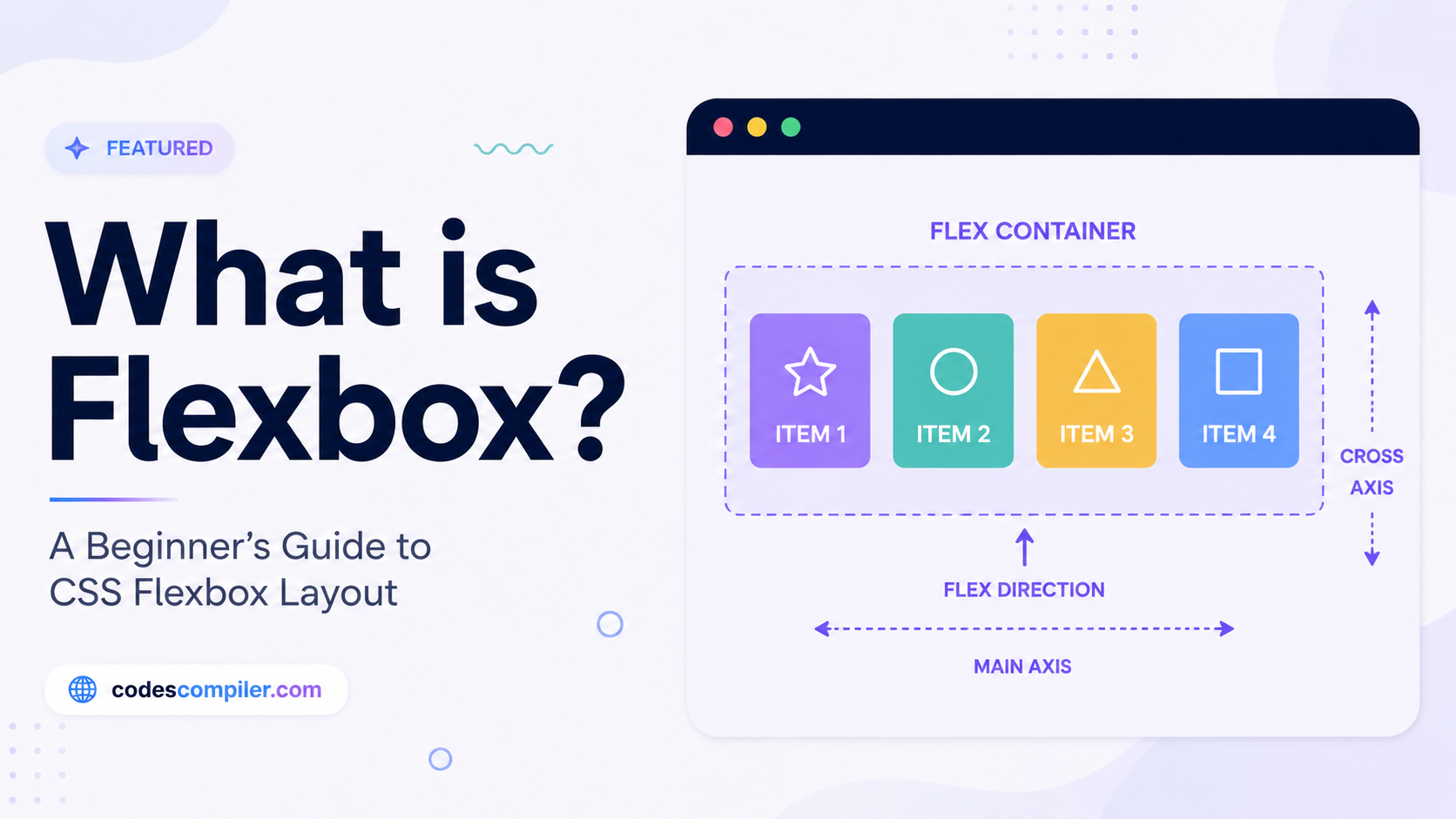
Flexbox operates under a parent-child relationship:
- Flex Container: The parent element which has
display: flexordisplay: inline-flexapplied. - Flex Items: All direct children elements inside the flex container.
When you make an element a flex container, it establishes two axes:
- Main Axis: The primary axis along which flex items are laid out (horizontal by default).
- Cross Axis: The axis perpendicular to the main axis (vertical by default).
Key Parent Properties (Container)
Here are the most common properties applied to the parent container:
1. display: flex
This activates Flexbox on the container.
.container {
  display: flex;
}
2. flex-direction
Controls the direction of the main axis (how items stack).
row(default): Horizontal from left to right.column: Vertical from top to bottom.row-reverse: Horizontal from right to left.column-reverse: Vertical from bottom to top.
3. justify-content
Aligns items along the main axis (horizontally by default).
flex-start(default): Items grouped at the start.flex-end: Items grouped at the end.center: Items centered.space-between: First item at the start, last item at the end, equal spacing between.space-around: Equal space around each item.space-evenly: Identical spacing between any two items and the edges.
4. align-items
Aligns items along the cross axis (vertically by default).
stretch(default): Items stretch to fill the container height.flex-start: Items aligned to the top.flex-end: Items aligned to the bottom.center: Items centered vertically.baseline: Items aligned according to their text baselines.
Key Child Properties (Items)
You can also apply properties directly to individual flex items to control their individual behavior:
1. flex-grow
Defines the ability for a flex item to grow if there is extra space. A value of 1 means it will take up equal remaining space.
.item-primary {
  flex-grow: 2; /* Grows twice as fast as other items */
}
2. flex-shrink
Defines the ability for a flex item to shrink if there is not enough space.
3. flex-basis
Defines the default size of an element before the remaining space is distributed.
Summary Cheat Sheet
Here is a quick cheat sheet for aligning items:
| Alignment Goal | CSS Rule to Apply to Parent |
|---|---|
| Align items horizontally to the center | justify-content: center; |
| Align items vertically to the center | align-items: center; |
| Make items stack vertically | flex-direction: column; |
| Distribute items evenly | justify-content: space-between; |
Flexbox is highly effective for smaller layouts, navbars, card grids, and aligning individual UI elements. Try styling your next layout using Flexbox!