
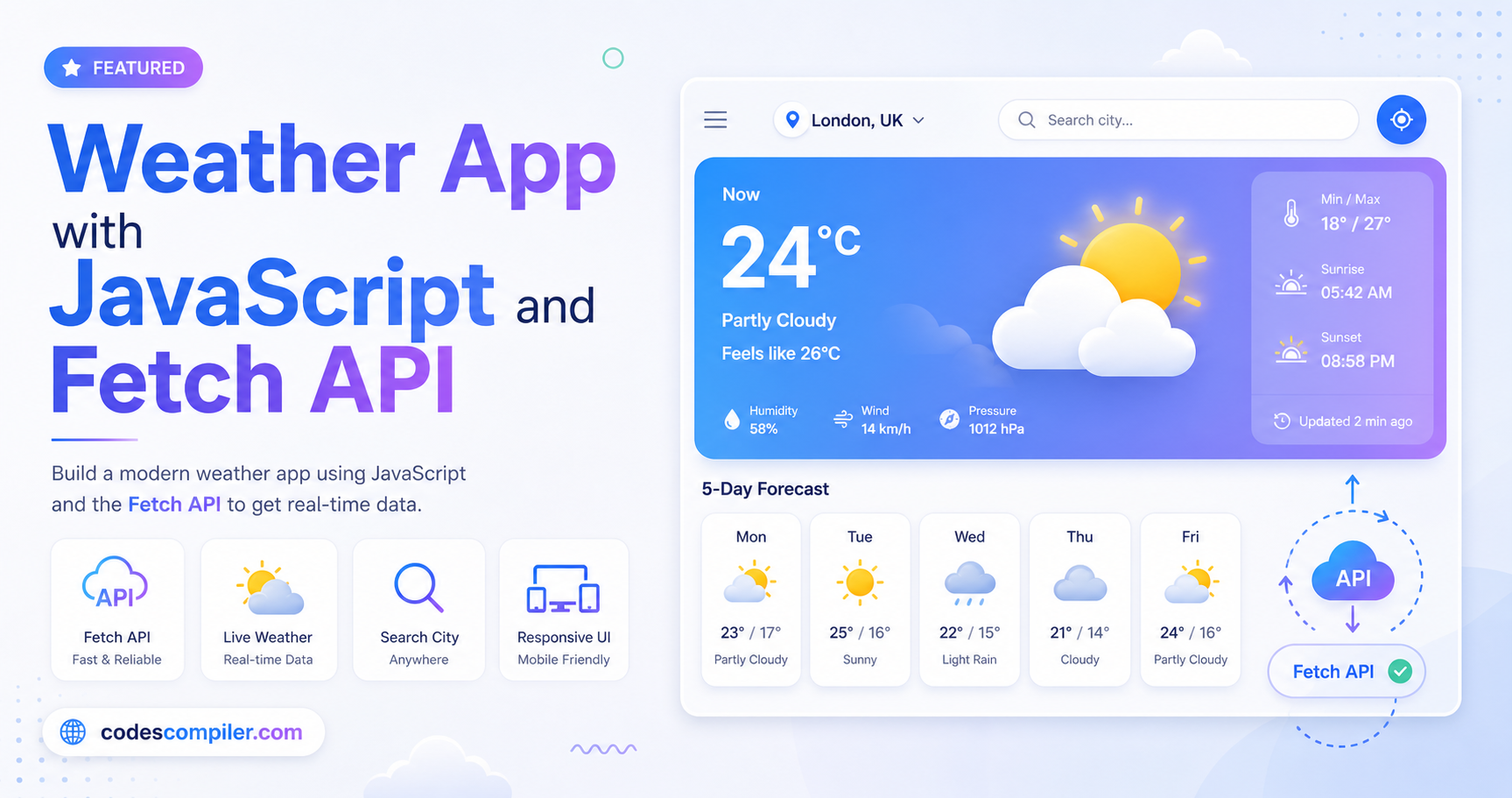
Build a Weather App with JavaScript and the Fetch API
Learn how to make asynchronous HTTP requests using the modern fetch API to build a beautiful Weather App.
Welcome to this tutorial on Building a Weather App with JavaScript. Understanding how to retrieve data from third-party APIs is a crucial skill for any modern web developer.
In this guide, we will use the native JavaScript fetch API to retrieve live weather data and display it in a beautiful, responsive card layout.
1. The HTML Layout
We need a search input for the city name, and a container to display the results (temperature, humidity, wind speed, etc.).
<div class="weather-card">
  <div class="search">
    <input type="text" id="cityInput" placeholder="Enter city name...">
    <button id="searchBtn">Search</button>
  </div>

  <div class="error-msg" id="errorMsg">City not found.</div>

  <div class="weather-info" id="weatherInfo">
    <img src="icon.png" class="icon" id="weatherIcon">
    <h2 id="cityName">London</h2>
    <div id="temperature">24°C</div>

    <div class="details">
      <div>Humidity: <span id="humidity">60%</span></div>
      <div>Wind: <span id="windSpeed">5 km/h</span></div>
    </div>
  </div>
</div>
2. The Fetch API Logic
The fetch() function allows us to make network requests. Because network requests take time to complete, fetch returns a Promise. We use async/await syntax to handle these promises cleanly.
For this demo, we use the free open-meteo.com API which doesn’t require an API key!
The async function
async function checkWeather(city) {
try {
// 1. Fetch Geocoding data (convert City Name to Coordinates)
const geoResponse = await fetch(`https://geocoding-api.open-meteo.com/v1/search?name=${city}&count=1`);
const geoData = await geoResponse.json();
if (!geoData.results) {
throw new Error('City not found');
}
const { latitude, longitude, name } = geoData.results[0];
// 2. Fetch Weather data using those coordinates
const weatherResponse = await fetch(`https://api.open-meteo.com/v1/forecast?latitude=${latitude}&longitude=${longitude}¤t=temperature_2m,relative_humidity_2m,wind_speed_10m`);
const data = await weatherResponse.json();
// 3. Update the DOM
document.getElementById('cityName').textContent = name;
document.getElementById('temperature').textContent = Math.round(data.current.temperature_2m) + "°C";
document.getElementById('humidity').textContent = data.current.relative_humidity_2m + "%";
document.getElementById('windSpeed').textContent = data.current.wind_speed_10m + " km/h";
// Show the weather info, hide errors
document.getElementById('weatherInfo').style.display = 'block';
document.getElementById('errorMsg').style.display = 'none';
} catch (error) {
// Handle errors (e.g. city not found)
document.getElementById('weatherInfo').style.display = 'none';
document.getElementById('errorMsg').style.display = 'block';
}
}3. Connecting the Event Listeners
Finally, we need to call our checkWeather function when the user clicks the Search button or presses the “Enter” key inside the input field.
const searchBtn = document.getElementById('searchBtn');
const cityInput = document.getElementById('cityInput');

searchBtn.addEventListener('click', () => {
  if (cityInput.value.trim() !== '') {
    checkWeather(cityInput.value);
  }
});

cityInput.addEventListener('keypress', (e) => {
  if (e.key === 'Enter' && cityInput.value.trim() !== '') {
    checkWeather(cityInput.value);
  }
});
And just like that, you have a fully functional weather application! You can expand on this by adding dynamic icons based on weather codes, changing the background color based on temperature, or saving the user’s last searched city using LocalStorage. Check out the Live Demo to see it in action!
